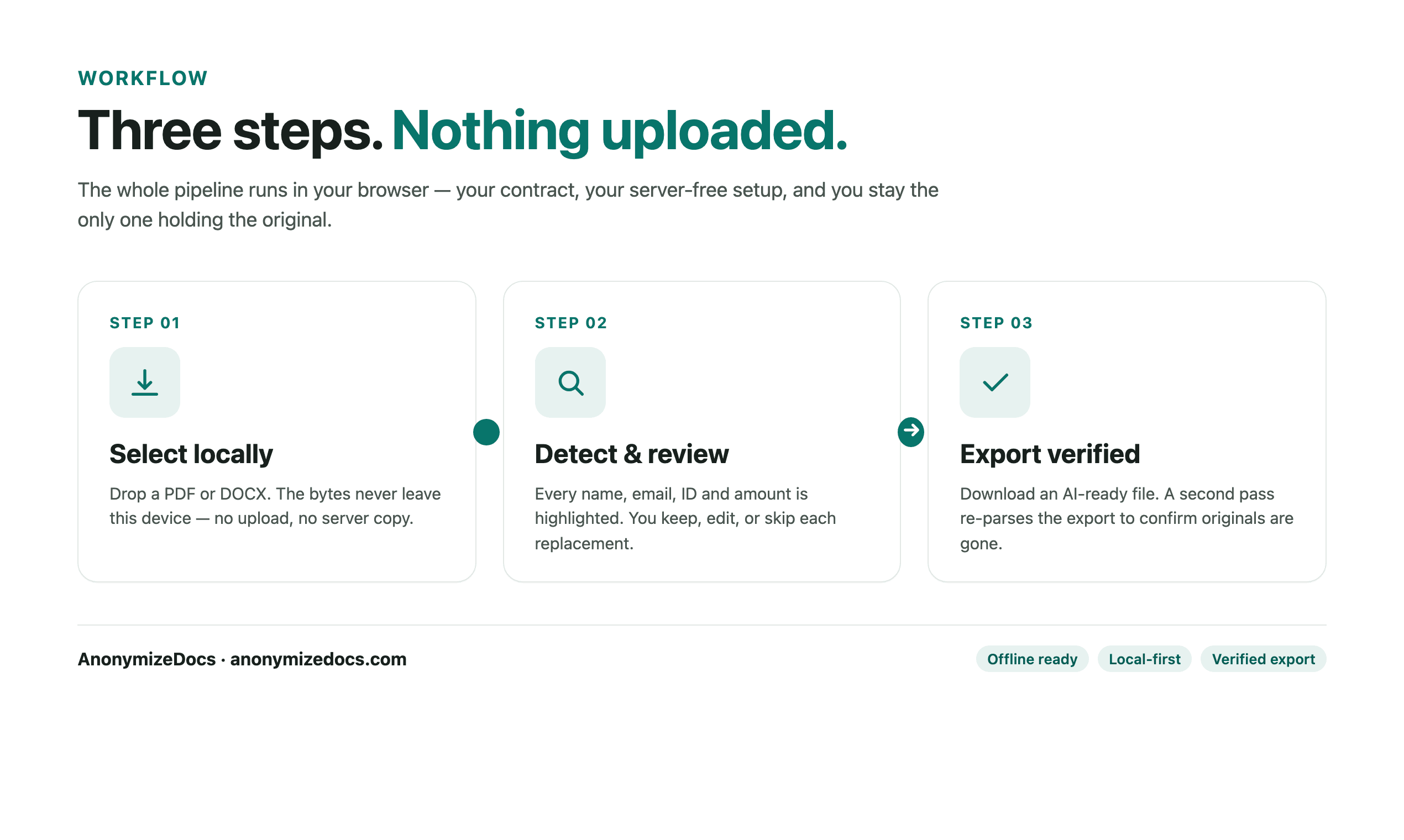
The safest AI upload is usually the smallest useful copy. This checklist works across PDFs and DOCX files and helps you separate task-relevant context from identity, confidentiality and document-history details.
Print this page or use your browser's Save as PDF option.
Work through each section
AI Document Upload Checklist: What to Remove First
1
Define the minimum useful context
Make the task specific before deciding which content can leave your device.
- State whether you need a summary, comparison, extraction or explanation
- Keep only the pages and sections needed for that task
- Preserve roles, clause relationships and relevant numbers
- Remove unrelated attachments, exhibits and personal notes
- Check whether a text excerpt would be enough instead of the full file
2
Remove personal and confidential details
Review both obvious identifiers and contextual clues.
- People, organizations, clients, vendors and brands
- Emails, phones, addresses, IDs and account references
- Financial, tax, medical, employment and case information
- Internal strategy, pricing, credentials and negotiation positions
- Project names, filenames and unique matter references
- Photos, signatures and text inside embedded images
3
Check the file format
Different document types hide information in different places.
- PDF text layers, annotations, attachments and hidden layers
- Scanned PDF pages and OCR confidence boundaries
- DOCX tables, headers, footers and document properties
- Embedded PNG or JPEG images inside a DOCX
- Tracked changes, comments and hyperlinks
- Unsupported content that needs manual review or exclusion
4
Verify and share deliberately
A reviewable export is more useful than an unverified promise.
- Save the original separately and work from a copy
- Review every proposed replacement before exporting
- Search the output for known source values
- Open the output again and inspect every page or section
- Use the approved AI account and current organization policy
- Share only the verified minimum and record any remaining limits
Tip: When in doubt, remove unnecessary detail. It is easier to add context back than to take it back after sharing.
Read the boundary
What this checklist can—and cannot—confirm
- Local processing reduces unnecessary network exposure during preparation but does not eliminate all AI-provider risk.
- The workflow supports Chinese and English OCR; OCR results still require human verification.
- When a file contains unsupported or unsafe-to-rewrite content, manual review or exclusion is the correct boundary.
Continue the workflow
Related reading
Local document workspace
Review your next file in the browser.
Your original document is not uploaded to AnonymizeDocs.